







Battery life and tips
PROTEQT Mouthguard and Charge Case battery life and charging information
- Mouthguard battery life
When fully charged, the PROTEQT Mouthguard can record for up to 4 hours. - Charging the mouthguard
The PROTEQT Mouthguard charges wirelessly when correctly placed in the charge case. It takes approximately 90 minutes to reach a full charge from empty. The charge case remains powered for 90 minutes to complete the charging cycle before automatically shutting off. - Charging the PROTEQT Charge Case
The charge case holds enough power to deliver up to four full charges for your PROTEQT Mouthguard before needing to be recharged. - Monitoring Charge Case battery level
To ensure your charge case is ready for use, monitor its battery level using the Battery Level Indicator (the third LED from left to right inside the case).- Red: Less than 25% battery remaining
- Amber/Orange: 25% to 75% battery capacity
- Green: Over 75% battery capacity
- Checking the charge case battery regularly ensures it’s always ready for your next session.
Turning on the mouthguard
To power on the PROTEQT Mouthguard, place it upright in the PROTEQT Charge Case, ensuring the interior (teeth-facing side) is facing up. You should be able to see inside the mouthguard. Press the power button on the underside of the case to turn it on. The mouthguard will automatically activate when aligned properly and the case is powered on.
Turning on the Charge Case
To power on the PROTEQT Charge Case, press the power button located on the underside of the case.
Alternatively, the case will also power on automatically when connected to a power source using the provided charging cable and adapter. When the case is powered on and the PROTEQT Mouthguard is correctly aligned inside (with the interior facing up), the mouthguard will automatically activate.
Charging issues
Troubleshooting charging issues for PROTEQT Mouthguard and Charge Case
If you're experiencing charging issues with your PROTEQT Mouthguard or Charge Case, try the following solutions:
- Ensure proper alignment
- Make sure the PROTEQT Mouthguard is placed correctly inside the charge case. The interior (teeth-facing side) should be facing up, and the mouthguard should be properly aligned with the case's charging connectors.
- Inspect charging contacts
- Ensure that the charging contacts inside the PROTEQT Charge Case are clean and free from debris. Dirt or dust can interfere with the charging process. Gently clean the Charge Case if necessary.
- Check Charge Case power
- Verify that the charge case is powered on. Press the power button on the underside of the case. If the case isn’t powering on, the battery may be depleted. Refer to the Battery Level Indicator to check the charge.
- Charge Case battery level
- The charge case needs to be charged periodically. If the case's battery level is too low, it won’t be able to charge the mouthguard. Check the Battery Level Indicator:
- Red: Less than 25% charge
- Amber/Orange: Between 25% and 75%
- Green: Over 75%
- The charge case needs to be charged periodically. If the case's battery level is too low, it won’t be able to charge the mouthguard. Check the Battery Level Indicator:
- If the indicator shows a low charge, connect the charge case to a power source to recharge.
- Check USB power source
- Ensure the USB charging cable and power source (wall adapter, laptop, etc.) are functioning properly. If the cable or adapter is faulty, it could prevent the charge case from charging.
- Allow time for charging
- Charging the PROTEQT Mouthguard should take around 90 minutes from empty. If it hasn't fully charged within this time, verify the connection, and check the charging cycle is completing as expected.
- Restart the app
- If the PROTEQT Mouthguard is not appearing as "connected" or if the app is not syncing with the device, try restarting the PROTEQT App and ensure that Bluetooth is enabled on your phone.
- Restart the charging cycle
- If you're still having trouble, remove the mouthguard from the case, wait a few seconds, and then reinsert it. Press the power button to turn the case on again and see if the charging cycle resumes.
- Reset your PROTEQT Mouthguard
- Refer to How to reset your mouthguard.
Still having trouble?
If you've tried the above solutions and are still experiencing charging issues, please contact our support team for further assistance. We are happy to help you get back on track.
Setup and app basics
The five setup steps (charging, downloading the app, creating an account and player profile, and connecting the mouthguard), the intended use statement and the tour of the PROTEQT App live on the Getting started page:
Mouthguard function
Mouthguard won’t turn on
If your PROTEQT mouthguard isn’t powering on, try the following checks:
1. Check for moisture damage
- If moisture enters the mouthguard, it may cause permanent damage.
- Look inside the mouthguard at the moisture indicator dots:
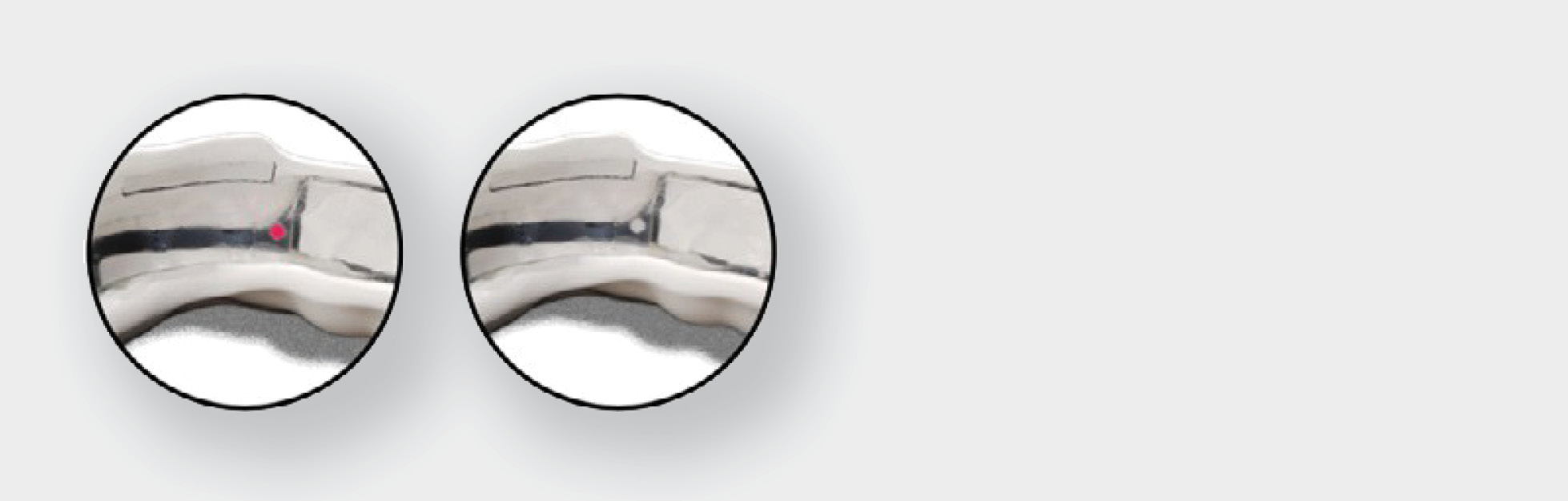
- White = OK
- Red = Moisture damage detected
- If the indicator dots have turned red and the mouthguard won’t turn on, it is no longer functional and must be replaced.
- Visit the PROTEQT website to view replacement options.
2. Check mouthguard placement in charging case
- Ensure the mouthguard is placed correctly in the case:
- The interior (teeth-facing side) should be facing up—you should be able to see inside the mouthguard.
- The serial number should be visible and aligned on the left-hand side of the charging case when looking down.
- Improper placement may prevent the device from charging or turning on.
3. Confirm the charging case is powered on
- Turn on the charging case by pressing the power button on its underside.
- When on, the LED lights on the case should illuminate.
- If the lights don’t turn on, the case may be out of battery.
Charge it using the power adapter provided with your PROTEQT equipment.
Mouthguard reset
How to reset your mouthguard
If your mouthguard is not behaving as expected—and you've already tried other troubleshooting steps—you may need to perform a reset. This can help resolve connectivity or temporary performance issues.
Before resetting, ensure the following:
- The mouthguard is not damaged
- The mouthguard is turned on and LED lights are visible
- The mouthguard is within Bluetooth range
- Your device has Bluetooth enabled
- You have a strong and stable Wi-Fi connection
Steps to reset your mouthguard
- Open the app and tap the Settings icon (bottom-right of the main menu).
- Under the Management section, select Manage Player.
- Tap the player’s name for the mouthguard you want to reset.
- Scroll down and select “Reset Mouthguard.”
- A message will appear:
“Resetting your mouthguard will clear temporary settings and restart the device. This may resolve connectivity or other issues. Do you want to proceed?” - Tap Reset to continue.
- A loading screen will appear while the app connects to the mouthguard and completes the reset.
- Once finished, a confirmation message will appear: “Reset successful.”
Your mouthguard is now ready for use.
Still not working?
If all steps have been followed and the mouthguard still doesn’t power on, contact PROTEQT Support for further assistance or visit the support section on our website.
Mouthguard replacement
How to replace a mouthguard
You may need to replace a mouthguard for several reasons, including:
- A lost, damaged, or broken mouthguard
- Entering the wrong serial number for your existing Mouthguard during the initial setup
Follow the steps below to register a new mouthguard to an existing player profile:
- Open the app and tap the Settings icon in the bottom-right corner of the main menu.
- Under the Management section, select Manage Player.
- Tap the player’s name for whom you want to replace the mouthguard.
- Scroll down and tap the Replace Mouthguard button.
- When prompted, enter the unique serial number printed inside your PROTEQT mouthguard.
- Make sure the mouthguard is:
- Switched on
- Close to your device
- Your phone’s Bluetooth is enabled
- Tap Register to begin pairing.
- A loading bar will appear as the mouthguard connects to your device.
- Once complete, you’ll be returned to the player’s profile, and your new mouthguard will be ready to use.
Troubleshooting tips for replacing a mouthguard
If you're having trouble replacing a mouthguard in the PROTEQT app, try the following:
1. Check Bluetooth connection
- Ensure Bluetooth is turned on in your phone settings.
- Make sure no other device is connected to the mouthguard.
- Move the mouthguard closer to your phone (within a few feet).
- Turn Bluetooth off and back on, then retry.
2. Ensure the mouthguard is turned on
- Turn the mouthguard on in the charge case using the power button on the underside of the case. LEDs will display on the mouthguard when it is on.
- If the mouthguard doesn’t respond, place it in the charger briefly, then try again.
3. Check your internet connection
- A stable internet connection is needed to register the mouthguard.
- If you're on cellular data, try switching to Wi-Fi (or vice versa).
4. Verify the serial number
- Double-check that you entered the correct serial number, exactly as printed inside the mouthguard.
- Avoid common mistakes like confusing letters and numbers (e.g., “O” vs. “0”).
5. Restart the process
- Fully close the app and reopen it before trying again.
- Navigate back to Settings > Manage Player > Replace Mouthguard and restart the replacement process.
6. Update the app and phone OS
- Make sure you are using the latest version of the PROTEQT app from the App Store or Google Play.
- Ensure your phone’s operating system is up to date.
Still not working?
If you’ve tried all the above:
- Restart your phone and retry the process.
Contact PROTEQT Support with your device type, app version, and a brief description of the issue.
LED explainer
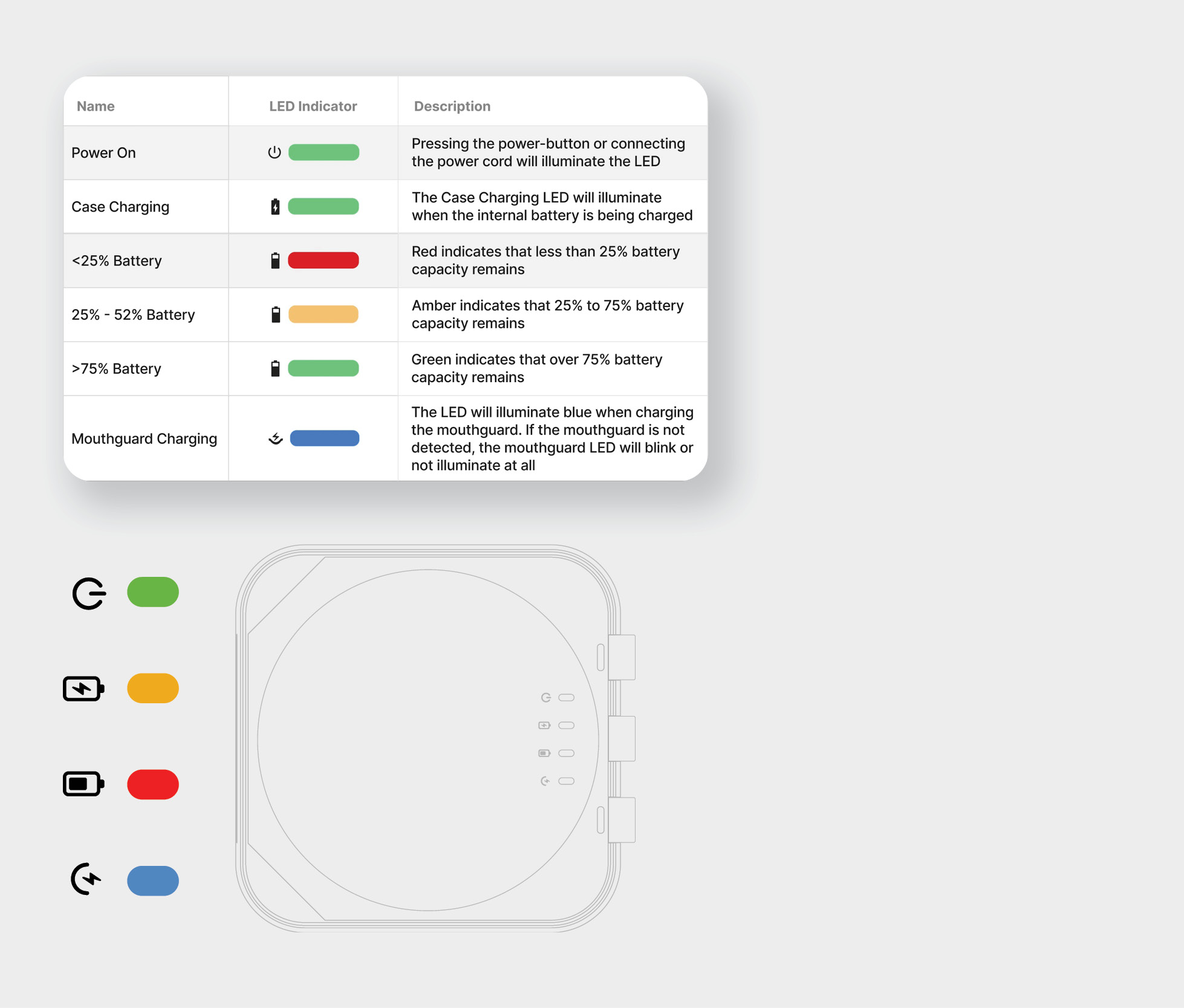
PROTEQT Charge Case LEDs explained
LED indicators (left to right):
- Power On
- Charging Status
- Battery Level Indicator
- Mouthguard Charging
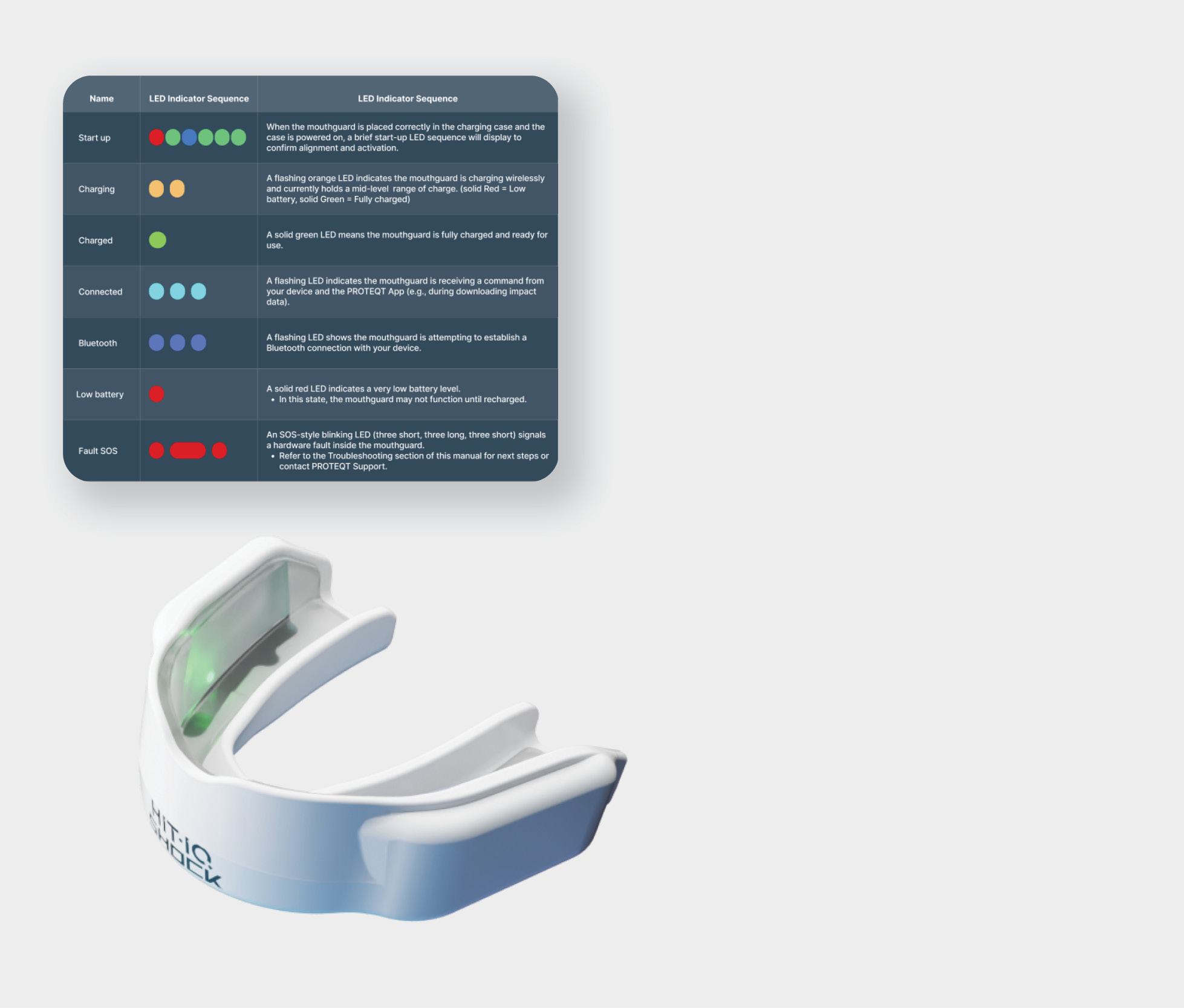
PROTEQT Mouthguard LEDs explained
Software updates
Why we release software updates for the PROTEQT App
We regularly release software updates to improve your experience and ensure your PROTEQT system performs at its best. These updates may include:
- New Features – Enhancements that give you access to the latest tools and improvements.
- Performance Upgrades – Faster, more reliable app performance and smoother syncing with your mouthguard.
- Bug Fixes – Corrections to known issues to make the app more stable and accurate.
- Security Enhancements – Updates to keep your data safe and the app compliant with current privacy standards.
- Compatibility – Ensures the app works seamlessly with the latest phone operating systems and devices.
Keeping your app up to date ensures you get the most accurate data, best performance, and full access to all features.
How to turn on app release notifications
For Apple (iOS) users
- Open the App Store on your iPhone.
- Tap your profile icon in the top-right corner.
- Scroll down to “Notifications” and tap it.
- Turn on the toggle for “Updates” to receive alerts when apps you have installed release new versions.
- Also ensure Automatic Downloads > App Updates is enabled in Settings > App Store if you want updates installed automatically.
For Android users
- Open the Google Play Store on your device.
- Tap your profile icon in the top right.
- Go to Settings > Notifications.
- Tap "Updates" and make sure "App updates available" is turned on.
- To enable auto-updates, go to Settings > Network preferences > Auto-update apps, and select your preferred option.
Tip: Make sure notifications are enabled for the App Store (iOS) or Google Play Store (Android) in your phone's general Settings > Notifications menu.
How to download the latest PROTEQT App update
For Apple (iOS) users
- Tap the notification you received about the app update.
- This will take you directly to the PROTEQT App page in the App Store.
- Tap the “Update” button next to the PROTEQT app.
- Wait for the update to download and install.
- Once updated, you can open the app directly from the App Store or your Home screen.
Alternate method:
- Open the App Store.
- Tap your profile icon (top right).
- Scroll down to Upcoming Automatic Updates or Available Updates.
- Find PROTEQT, then tap Update.
For Android users
- Tap the notification about the app update.
- This will take you to the PROTEQT App page in the Google Play Store.
- Tap the “Update” button.
- Wait for the update to install.
- Open the app once the update is complete.
Alternate method:
- Open the Google Play Store.
- Tap your profile icon > Manage apps & device.
- Under Updates available, find PROTEQT and tap Update.
Note: Make sure you're connected to Wi-Fi or have a stable internet connection for a smooth update.
Troubleshooting tips for software (app) updates
1. Check your internet connection
- Make sure you have a stable Wi-Fi or mobile data connection.
- Try switching between Wi-Fi and mobile data if the update won’t download.
2. Restart the app store
- iOS: Force close the App Store, then reopen it.
- Android: Force close the Play Store and try again.
3. Restart your device
- A simple reboot can often resolve download or installation issues.
4. Check for OS compatibility
- Make sure your phone’s operating system is up to date.
- Outdated iOS or Android versions can block app updates.
5. Clear cache (Android only)
- Go to Settings > Apps > Google Play Store > Storage > Clear Cache.
- Then reopen the Play Store and try the update again.
6. Check storage space
- Make sure your device has enough free storage to install the update.
- Delete unused apps or media if needed.
7. Sign in to the correct app store account
- Ensure you're logged into the same Apple ID or Google account used to download the app originally.
8. Turn off VPN or battery saver
- Some VPNs or battery-saving modes may interfere with downloads.
9. Delete and reinstall the app (if needed)
- If nothing else works, uninstall the app, then reinstall it from the App Store or Play Store.
- Make sure you know your login details beforehand.
Still need help?
- Contact PROTEQT Support
- Include your device type, OS version, and a screenshot if possible.
Firmware updates
A firmware update is the process of updating the built-in software that controls the smart mouthguard’s core functions—like recording head impacts, managing wireless communication, and optimizing battery use. These updates keep the device accurate, safe, and up to date with the latest performance and safety standards.
You can update your PROTEQT Mouthguard’s firmware in the PROTEQT App using one of two simple methods.
Option 1: Update firmware from Settings
- Open the app and go to your Dashboard.
- Tap the Settings icon (bottom right corner).
- Under the Management section, select Manage Player.
- Choose the player’s name.
- Ensure the mouthguard is:
- Switched on
- Nearby and within Bluetooth range
- The app will automatically check the firmware version.
- If it’s out of date, you'll see a message: “Out of date” and a pop-up: “Update Required”.
- Tap “Update” to begin the update.
- Keep the app open and the mouthguard in Bluetooth range during the process.
- A progress bar will show the update status.
- When complete, tap Confirm—your mouthguard is now updated and ready to use.
Option 2: Update firmware from Record
- Tap “Record” from the main menu (bottom of the screen).
- Make sure the mouthguard is:
- Switched on
- Within Bluetooth range
- If the firmware is out of date, the app will display “Out of date” and a pop-up: “Update Required”.
- Tap “Update” and “confirm” to begin the update.
- Keep the app open and the mouthguard in Bluetooth range during the process.
- A progress bar will show the update status.
- When complete, tap Confirm—your mouthguard is now updated and ready to use.
Troubleshooting firmware updates in the PROTEQT App
If you're having trouble updating your mouthguard's firmware, try the following steps:
1. Mouthguard not detected
- Ensure it's switched on – With the mouthguard in the charge case, use the power button on the underside of the case. Your PROTEQT mouthguard should display LEDs when turned on.
- Check Bluetooth – Confirm your phone’s Bluetooth is turned on.
- Move closer – The mouthguard must be within a few feet of your device for best Bluetooth operations.
- Restart the app – Fully close and reopen the PROTEQT app.
2. Firmware update won’t start
- Confirm the app shows the mouthguard as “Out of date” with the “Update Required” pop-up.
- Tap “Update” once; avoid tapping multiple times.
- Check for a stable internet connection, especially during Firmware download.
- Make sure only one phone is connected to the mouthguard at a time.
3. Update gets stuck or fails
- Keep the app open and the screen active (do not let your phone go to sleep).
- Stay within Bluetooth range throughout the process.
- Force close and restart the app, then try again.
- If it fails repeatedly, reboot your phone, then retry the update.
4. Update completed but not reflected
- Wait a few moments—some devices take a few seconds to sync.
- Go back to Manage Player or Record, and check firmware status again.
- If still showing “Out of date,” repeat the update once more.
Still not working?
If you've tried all steps above and still can't update:
Provide details like the device model, app version, and any error messages you saw.
Still have questions? Return to the Support page or email us at support@hitiq.com.